
Tip & Trick
Struggling to keep your Microsoft files organized? Consistent file naming conventions save time, reduce errors, and make collaboration seamless. These seven best practices will transform your digital workspace from chaotic to professional in minutes.
Date-Based Naming for Version Control

Tired of digging through "Finalv3.docx" chaos when tracking contracts or reports? Date-based naming solves this by embedding the creation date directly in filenames—like 20240515ClientContract.docx—so every file’s age is instantly clear.
Microsoft’s OneDrive sync history works seamlessly with this format, letting you sort files chronologically with a single click. Use YYYYMMDD (e.g., 20240515) for global compatibility, and pair it with underscores to separate dates from project names. This method eliminates manual versioning while keeping your folder structure tidy.
Perfect for legal teams, freelancers, or anyone managing time-sensitive documents. It’s the easiest way to ensure every file’s timeline is visible at a glance—no extra tools needed. ✨
Project-Centric Naming with Prefixes

When multiple teams work on the same project, inconsistent file names create confusion and slow down workflows. Project-centric naming with prefixes solves this by adding a standardized identifier like PROJ-2024-Q1 to every file, ensuring instant recognition across departments.
This method works seamlessly with Microsoft Project integration, letting you link files directly to tasks, timelines, and resources. For example, "PROJ-2024-Q1MarketingPlan.docx" clearly shows the project, quarter, and document type at a glance. The prefix also syncs with SharePoint metadata, making filtering and permissions management effortless.
Ideal for cross-functional teams or agencies managing client projects, this approach reduces miscommunication and speeds up file retrieval. 💻
File Type Extensions for Instant Recognition
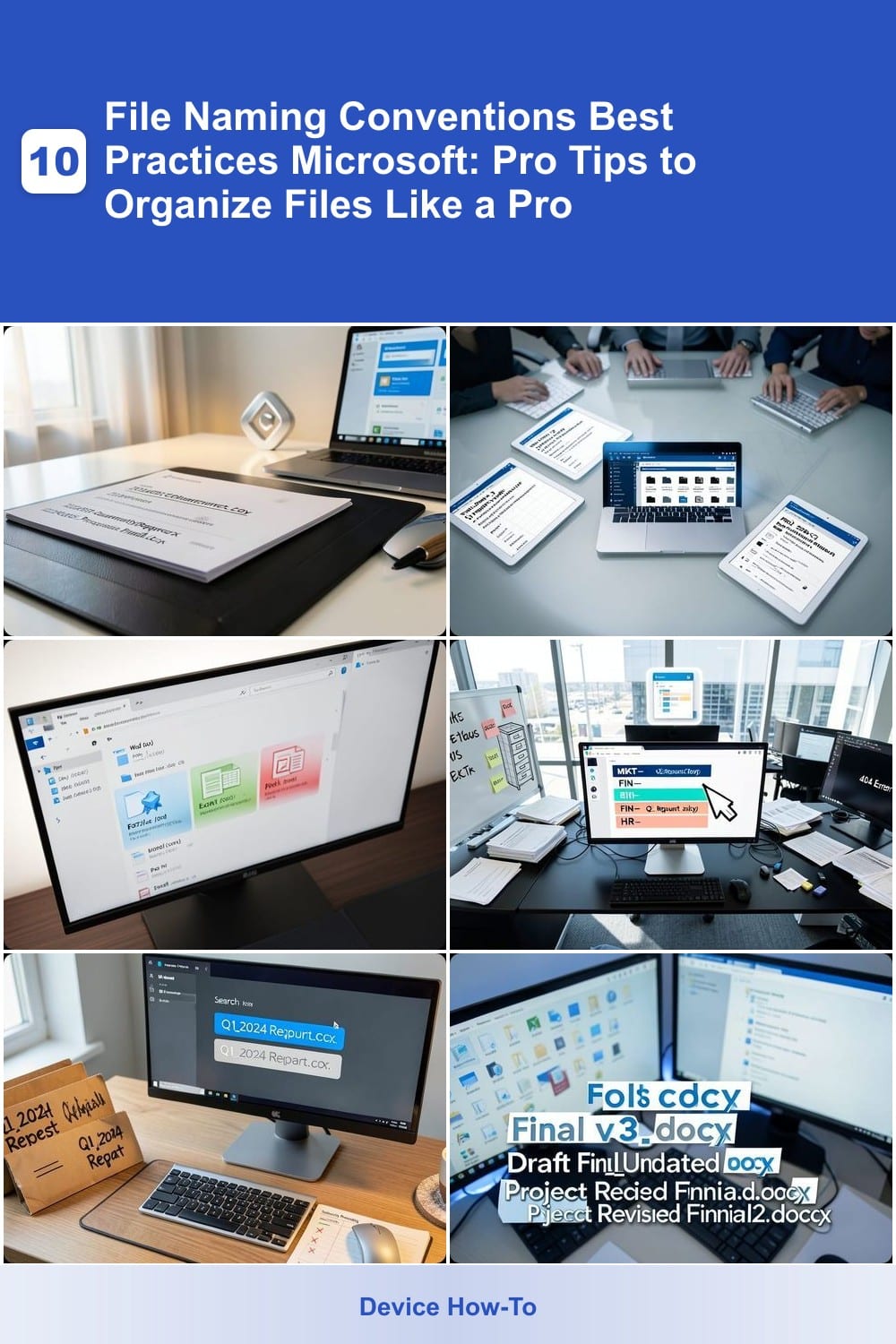
Windows Search struggles when file extensions are hidden—so always include .docx, .xlsx, or .pdf to ensure instant filtering. This simple step prevents compatibility errors and lets you sort files by type with a single click in File Explorer.
Microsoft Office files default to visible extensions in modern Windows versions, but older systems may hide them. Enabling extensions in Folder Options ensures Windows Search indexes them properly, making retrieval faster. Even better, this practice aligns with SharePoint and OneDrive’s metadata handling.
This rule is non-negotiable for professionals sharing files across teams—especially in enterprise environments where automation relies on accurate file type detection. ⚡
Department-Specific Naming Codes
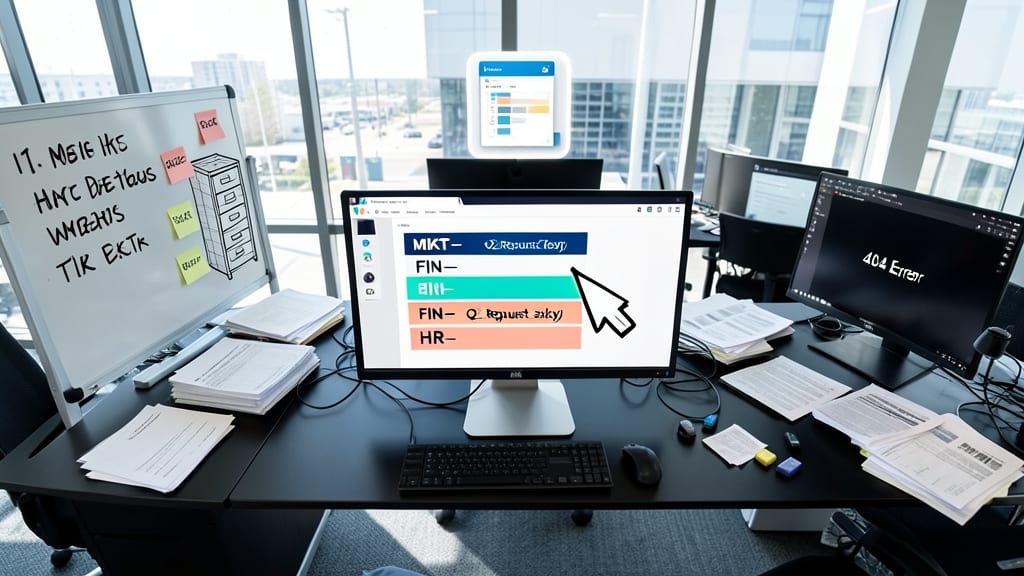
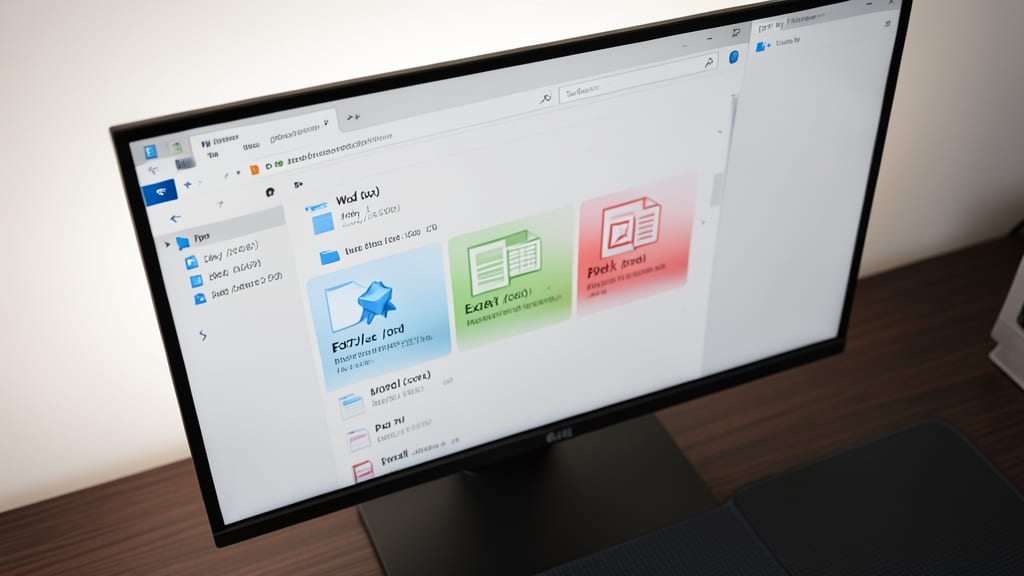
Enterprise teams drowning in unorganized files will love how department-specific prefixes instantly categorize documents—no more guessing whether "Q2_Report.xlsx" belongs to Marketing or Finance.
Use codes like MKT- for Marketing, FIN- for Finance, or HR- for Human Resources to align with Microsoft SharePoint metadata fields and security permissions. This ensures files auto-sort into the right folders and access controls apply correctly from the start. The consistency also streamlines Power Automate workflows and SharePoint column filters, making enterprise-wide searches lightning-fast.
This system is ideal for large organizations where cross-department collaboration happens daily—especially when combined with SharePoint’s built-in content types and document libraries. ✨
Underscore Separators for Searchability

Tired of Windows Search treating "Q12024Report" and "Q1 2024 Report" as completely different files? Underscores ('_') are your secret weapon for reliable search results—Microsoft's full-text indexing handles them flawlessly, while spaces often cause indexing quirks.
Unlike spaces, which can confuse Windows Search and even break some third-party tools, underscores are universally supported across Microsoft Office, SharePoint, and OneDrive. They also prevent issues with automated scripts (like PowerShell) that might misinterpret spaces or special characters. Plus, they’re easier to read than hyphens in bulk file operations.
This method shines for enterprise users managing thousands of files or teams relying on automated workflows. Try it today—your future self (and your search bar) will thank you! ⚡
Version Control with Suffixes
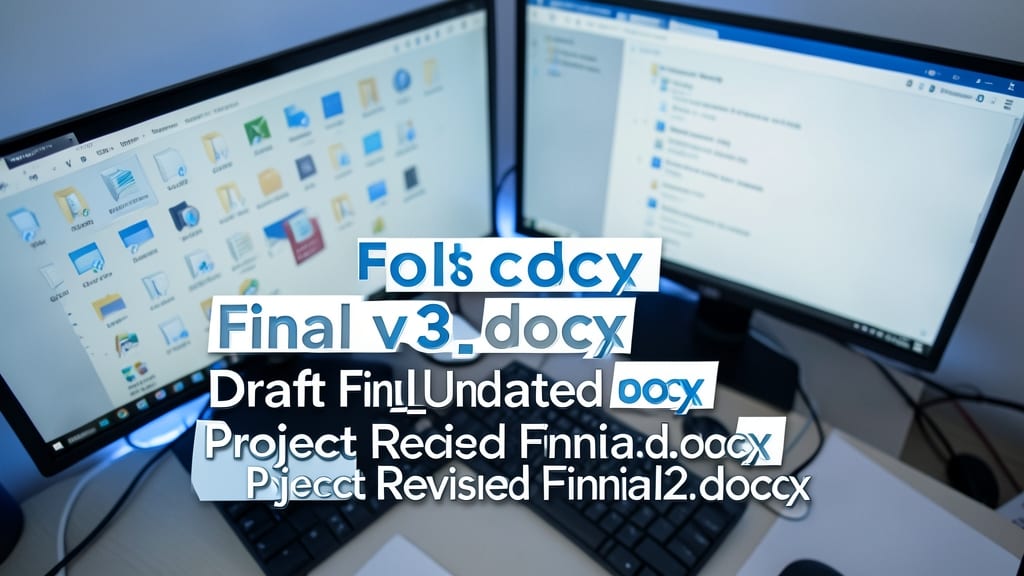
Tired of digging through folders filled with Finalv3.docx and DraftFinal_Updated.docx? Microsoft Office 365’s built-in version history works best with clean, predictable suffixes like -v1, -v2—no more guessing which file is the "real" one.
Simply append -v1, -v2, -v3 to your filenames (e.g., ProjectPlan-v2.docx), and Office 365 will automatically sync these versions to its version history. This method avoids clutter while keeping track of edits—perfect for solo users or small teams who don’t need full-fledged version control systems. The Office 365 version history feature then lets you revert or compare changes with just a few clicks.
This approach is ideal for freelancers, marketers, or anyone managing single-document workflows where simplicity beats complexity. No extra tools needed—just consistency. ✨
Location-Based Naming for Field Teams

Field teams juggling sites across cities need a system that keeps files organized and geo-tracked—no more guessing where "SiteReport.docx" was created. Microsoft’s location-based naming solves this by embedding city/region prefixes (like NY- or LA-) directly into filenames, syncing with OneDrive’s built-in GPS location tags for automatic metadata.
Start with a 3-letter city code (e.g., SF-2024-05-10_Inspection.docx) followed by date and purpose. OneDrive’s location-aware sync then auto-populates metadata, letting you filter files by GPS coordinates in SharePoint or Power Automate workflows. No manual tagging—just save and let Microsoft handle the rest.
This is a game-changer for construction crews, sales reps, or service technicians who need to retrieve site-specific docs instantly. Pair it with OneDrive’s mobile app to snap photos and auto-name files by location—no keyboard required. ✨